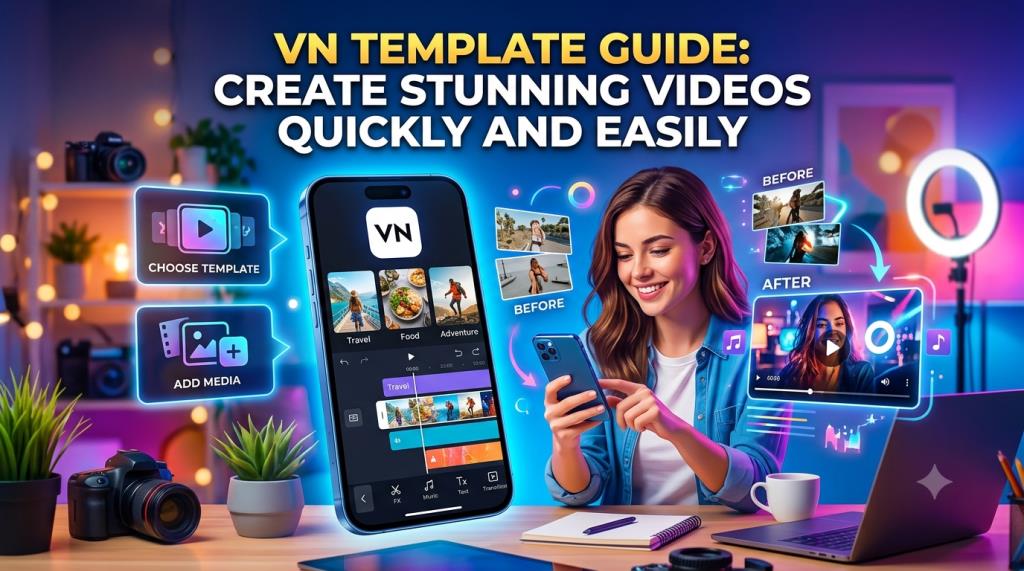
VN Template Guide: Create Stunning Videos Quickly and Easily
Video editing can feel complicated when you are starting with a blank timeline. You have to arrange clips, match cuts with music, choose transitions, add readable text, correct colors, and keep the finished video interesting.
A VN template simplifies this process by giving you a ready-made editing structure. Instead of building every transition, animation, and timing sequence manually, you can insert your own photos or videos into an existing design.
This approach is useful for Instagram Reels, TikTok videos, YouTube Shorts, travel montages, birthday edits, product promotions, wedding memories, and personal videos. VN’s official website describes the editor as a free video-editing tool with templates, multi-track editing, keyframe controls, 4K support, and watermark-free exporting.
However, a template does not automatically guarantee a great video. The final quality still depends on your footage, clip selection, text, music, and customization. This guide explains what a VN template is, how it works, how to use it correctly, and how to make template-based videos look more original.
What Is a VN Template?
A VN template is a pre-designed video project created for the VN Video Editor. It may include clip placeholders, transitions, music timing, text styles, filters, effects, zooms, speed changes, and animations.
You replace the sample clips with your own photos or videos while keeping the basic editing structure.
Think of it as a blueprint for a video. The blueprint already determines where each clip should appear, how long it should remain visible, and when transitions or effects should happen. You provide the content, while the template provides the technical arrangement.
Templates can be available through VN’s official template library or shared by other creators through links and QR codes. According to VN’s official help center, users can access the Discover area, browse recommended designs, search with keywords, and apply a selected template directly.
The exact buttons or layout may vary depending on your device, region, and version of the app.
A template is different from a filter. A filter mainly changes the visual appearance of a photo or video, such as brightness, warmth, contrast, or color tone. A template controls a much larger part of the editing process, including timing, transitions, text, animations, and clip order.
It is also different from a preset. A preset normally applies a saved collection of adjustments to an individual clip. A VN template, by comparison, provides a structure for an entire video.
The greatest advantage is speed. A beginner can create a well-organized video without understanding every advanced editing tool. An experienced editor can also use a template as a starting point and then customize it for a more distinctive result.
Why VN Templates Are Useful for Content Creators
The most obvious reason to use a VN template is that it saves time. Even a 20-second social media video can involve dozens of small decisions. You must decide which clip comes first, how long every scene lasts, where the music changes, and which transition fits each moment.
A template handles many of these decisions in advance.
This is particularly helpful for people who need to publish content regularly. A small business owner may need frequent product videos. A student may want to create a quick event recap. A traveler may have hundreds of photos but limited editing experience. A content creator may need several short videos every week.
In all these situations, a template can turn unorganized media into a structured video more efficiently.
Templates can also teach beginners how editing works. By watching how a finished design is arranged, you can learn how short clips create energy, how slower shots create emotion, and how transitions are timed with music.
VN includes tools such as beat markers and keyframes. Beat markers help editors position clips according to the rhythm of a soundtrack. Keyframes control changes in position, size, opacity, and movement over time.
Another benefit is consistency. Businesses, personal brands, and social media pages often need a recognizable visual style. Using related templates with similar colors, fonts, and pacing can help different videos feel connected.
That does not mean every post should look identical. The goal is to create a familiar visual identity while changing the subject and message.
A VN template can also reduce creative hesitation. Many people have attractive footage but do not know how to begin editing it. A template gives them an immediate structure. Once the clips are placed, it becomes easier to identify what should be shortened, replaced, or emphasized.
Nevertheless, templates are not automatic quality generators. Blurry footage, inappropriate music, excessive text, or random clip selection can still produce a weak result. The template gives your video structure, but your creative choices give it meaning.
How to Use a VN Template Step by Step
Before opening a template, organize your media. Review your photos and videos and remove duplicate images, blurry shots, accidental recordings, and clips with distracting backgrounds.
Having organized source material will make the editing process much easier.
Open VN and locate the template or Discover section. Browse the available categories or search using words related to your project, such as travel, birthday, cinematic, friendship, wedding, fashion, product, business, or lifestyle.
Choose a design that matches both your subject and the amount of media you have.
Always preview the complete VN template before applying it. Check its total duration, number of clip placeholders, music style, transition speed, text placement, and overall mood.
A fast, energetic template may not suit peaceful wedding footage. A romantic design may not work for a professional product demonstration. The template’s style should support the purpose of the video.
After choosing a template, select the option to use or apply it. VN will normally ask you to add photos or videos to the available placeholders.
Select your media in the order in which you want it to appear. Do not choose files randomly. Your opening clip should be visually strong because the first few seconds determine whether viewers continue watching.
When the media has been inserted, preview the entire video. Look for poorly cropped faces, hidden objects, awkward framing, black borders, or clips that do not match the required orientation.
Reposition or enlarge clips when necessary. If a placeholder lasts for only one second, use footage that becomes interesting immediately. Avoid selecting a clip that requires several seconds before the main action begins.
Replace all sample text with your own wording. You might add a title, date, destination, product name, quotation, event message, or call to action.
Keep the text brief. Viewers should be able to understand it without pausing the video. Also, avoid placing important text too close to the top or bottom edges because social media buttons, captions, and profile information may cover those areas.
Check the music carefully. Some templates are designed around a particular song or beat pattern. Make sure the mood of the track matches your content.
You should also confirm that you are permitted to use the music on your intended platform. Audio available in an editing application is not necessarily cleared for every commercial purpose or every social media platform.
Before exporting, watch the project again with the sound turned on. Check the spelling, clip order, transitions, music volume, and final frame.
For Reels, TikTok, and YouTube Shorts, a vertical 9:16 format is normally the most suitable. After exporting, watch the saved video outside the VN app. This can reveal black frames, audio problems, text errors, or cropping issues that were not obvious during editing.
How to Customize a VN Template Professionally
One of the biggest mistakes beginners make is assuming that every part of a template must remain unchanged. A good template should be treated as a starting point, not a strict rule.
Thoughtful customization helps the finished video feel personal rather than copied.
Begin with your footage. Select clips that belong to the same event, subject, mood, or story. For a travel video, you might combine wide shots of the destination, close-ups of food or architecture, walking scenes, people, transportation, and memorable moments.
If every clip shows the same subject from the same angle, even an attractive VN template may become repetitive.
Arrange the clips so that they tell a simple story. A strong structure might begin by introducing the location, continue with activities and details, highlight the best moment, and finish with a memorable closing shot.
Do not place all your best footage at the beginning. Save at least one strong image or scene for the ending.
Customize the text carefully. Limit yourself to one or two font styles. Too many different fonts can make the video feel disorganized.
Make sure the words remain readable against the background. White text may disappear over a bright sky, while dark text may become invisible over a shadowy clip. A subtle outline, shadow, or background box can improve readability.
Color consistency is equally important. Footage recorded at different times or on different devices may have noticeably different tones. One clip may look warm and bright, while another appears blue or dull.
Make small adjustments to brightness, contrast, saturation, temperature, and shadows so that the clips feel connected. Avoid using an extremely strong filter simply because it looks dramatic. Heavy filters can damage natural skin tones and remove details from highlights or shadows.
You can also adjust the transitions. Not every transition needs to be flashy. Simple cuts, fades, and gentle zooms are often more professional than repeated spinning, shaking, or flashing effects.
If the original template contains too many effects, remove some of them. A cleaner edit often allows the subject to receive more attention.
Check the audio balance as well. Background music should support the video without overpowering speech, natural sound, or voice-over. Lower the music volume when someone is talking.
When using a VN template for business content, add brand elements carefully. A logo, brand color, website, or call to action can be helpful, but it should not cover the product or dominate the screen.
The final result should still feel like a video, not a crowded advertisement.
Read More: Trending CapCut Template: Create Viral Videos Faster
Best VN Template Ideas for Different Types of Videos
Travel videos work especially well with templates because trips naturally include different locations, activities, people, and details. Choose a template with enough space for both wide landscape footage and short close-ups.
A calm cinematic design may suit mountains, beaches, or historical places, while a faster beat-based design may work better for a city tour or adventure trip.
For birthday videos, select a VN template that allows a combination of portraits, group photos, short celebration clips, and a closing message. Arrange the content chronologically or begin with the most memorable moment.
Avoid adding every photo you have. A shorter selection of meaningful images is usually more emotional than a long sequence of similar pictures.
Businesses can use templates to demonstrate products, announce offers, show behind-the-scenes activities, or present customer results. The first scene should communicate the main benefit quickly.
For example, a bakery might begin with a close-up of a finished cake, show parts of the preparation process, and end with ordering information.
Fashion and beauty creators can use templates with smooth motion, clean typography, and controlled transitions. The design should support the clothing, makeup, or product instead of distracting from it.
Use consistent lighting and avoid transitions that make it difficult to see important details.
Educational creators can turn a VN template into a short explainer. Use one placeholder for the problem, several for the key points, and the final scene for a conclusion or call to action.
Keep each text message brief. A short-form video should introduce or summarize a topic rather than display full paragraphs.
Templates are also useful for before-and-after videos. These may include room renovations, photo editing, fitness progress, artwork, makeup, cleaning, repairs, or product transformations.
Make sure the “before” and “after” images use similar angles whenever possible. Matching angles make the change easier to understand and more visually convincing.
Common Mistakes and Final Advice
Choosing a template only because it is trending is a common mistake. A popular design may still be unsuitable for your subject, audience, or brand.
Select a VN template according to the story you need to tell, not simply according to the number of people using it.
Another mistake is inserting clips without reviewing them. A template cannot repair poor lighting, severe camera shake, weak composition, or an uninteresting scene. Choose the strongest available footage before editing.
Using too many effects can also reduce quality. Flashing transitions, rapid zooms, animated text, stickers, and color filters may compete for attention. Decide what the viewer should notice most and remove anything that distracts from it.
Do not ignore the ending. Many template videos begin strongly but stop suddenly. Use the final scene to complete the story, show a result, display a message, or provide a clear call to action.
You should also avoid publishing the first automatic result without reviewing it. Watch the video several times, including once without sound. A silent preview helps you judge whether the visual story is understandable on its own.
Final Thoughts
A VN template is most valuable when it saves time without removing your creativity. It can provide timing, structure, transitions, and visual direction, but the finished video should still reflect your own story or brand.
The best template-based videos do not look as though someone simply replaced a few placeholders. They feel carefully selected, clearly organized, and intentionally customized.
Begin with high-quality footage, choose a design that matches your message, and make small improvements to text, color, sound, and pacing. With practice, templates will not only help you edit faster but also teach you how stronger videos are constructed.
Frequently Asked Questions
Is a VN template free to use?
Many templates available through VN can be used without payment, although availability and specific features may vary by app version or region. Review any conditions connected to third-party templates, music, fonts, or media before using them commercially.
How do I find templates in VN Video Editor?
Open the VN app and look for the Discover or template area. You can browse recommended designs or search with terms such as travel, birthday, cinematic, product, or beat edit. The interface may look slightly different depending on your device and app version.
Can I create my own VN template?
VN supports the creation and sharing of video and music templates. You can build a project with your preferred timing, effects, text, transitions, and audio, and then use its sharing options when available on your device.
Can I change the music in a VN template?
In many cases, you can replace or adjust the music after applying the template. However, changing the song may affect transitions that were synchronized with the original beat. You may need to reposition clips or beat markers.
Why does my template look different from the preview?
Your footage may have a different orientation, length, brightness, or composition from the sample footage. Reposition the clips, adjust cropping, correct colors, and use media that matches the pace of the original design.
Can I use a VN template for YouTube Shorts?
Yes. Choose or export the project in a vertical 9:16 format and keep the important subject and text inside the safe central area. Watch the exported video before uploading to ensure that YouTube’s interface does not cover essential information.
Does using a VN template reduce video quality?
The template itself does not necessarily reduce quality. Low-quality source footage, excessive cropping, repeated exporting, or unsuitable export settings are more likely to affect the result. Start with clear media and select an appropriate export resolution.
How can I make a template video look original?
Use your own footage, rewrite all sample text, adjust colors, remove unnecessary effects, change selected transitions, and add a meaningful story. Even small customizations can make a widely used template feel more personal and distinctive.