Best Gemini AI Photo Editor Prompts for Beginners
Introduction
AI photo editing has changed the way people improve and transform their pictures. In the past, you needed advanced editing software and some experience to remove objects, change backgrounds, improve lighting, or create a different visual style. Today, AI tools can make many of these tasks much easier.
A gemini ai photo editor can help beginners edit images by using simple text instructions. Instead of learning complicated editing tools, you can describe the changes you want and let AI help create the result. This makes photo editing more accessible to people who have little or no design experience.
The most important part is writing a clear prompt. A good prompt tells the AI what to change, what style to use, and which parts of the original image should remain untouched. In this guide, you will find useful Gemini AI photo editing prompts that beginners can copy, customize, and try.
How to Use Gemini for Photo Editing
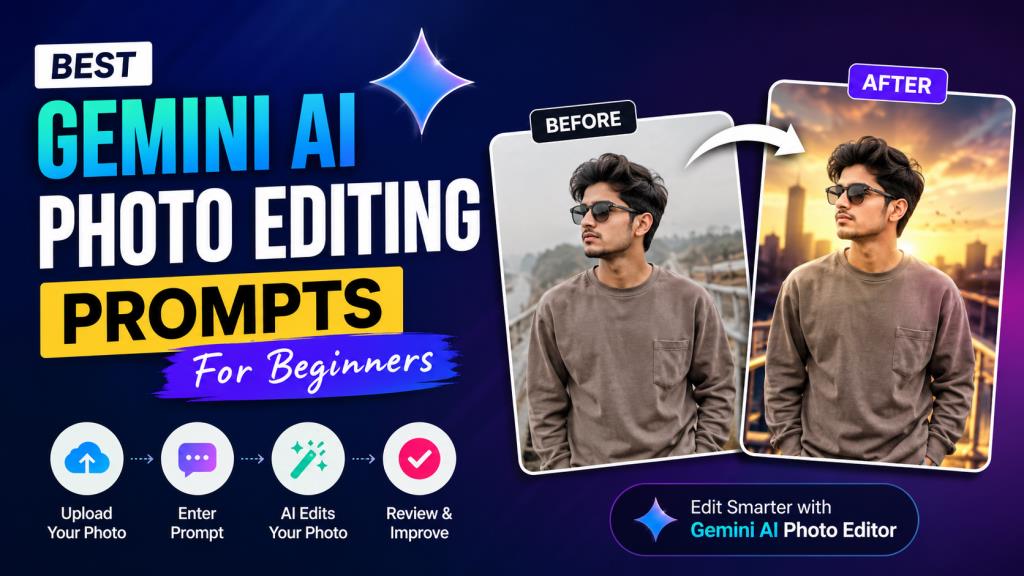
Using Gemini for image editing is generally simple. First, upload the photo you want to work with. Choose a clear image when possible because better source images can make editing easier. Next, enter an editing prompt. Explain exactly what you want Gemini to change. For example, you could ask it to replace a plain background with a natural outdoor scene while keeping the person unchanged.
After Gemini generates the result, carefully review it. Look at the face, hair, hands, clothing, background, and other important details. If something does not look right, improve your prompt and try again. You do not always need to write a completely new prompt. Adding one or two specific instructions can help guide the next edit.
How to Write a Good Gemini AI Photo Editing Prompt
A good prompt should be clear and specific. Avoid instructions such as “make this photo better” because the AI may not know what you mean. Describe exactly what you want to change. Mention the background, lighting, clothing, colors, mood, or style when those details matter. If you want a realistic result, say so directly.
It is also useful to mention what should stay unchanged. For example, you can tell Gemini to preserve the person’s facial features, skin tone, pose, and identity. Keep your instructions simple. You can start with a basic prompt and add more details after seeing the first result. This approach is especially helpful for beginners using a gemini ai photo editor.
Best Gemini AI Photo Editing Prompts for Beginners
1. Background Change Prompt
“Replace the current background with a beautiful natural park during golden hour. Keep the person, face, clothing, pose, and body proportions unchanged. Make the new background look realistic.”
2. Remove Background Prompt
“Remove the existing background and replace it with a clean, simple light-colored background. Keep the subject sharp and preserve all important details.”
3. Remove Unwanted Objects Prompt
“Remove the unwanted object in the background and naturally fill the empty area. Make the edited area blend seamlessly with the original photo.”
4. Improve Photo Quality Prompt
“Enhance this photo by improving sharpness, clarity, brightness, and overall detail. Keep the original appearance natural and avoid making the image look artificial.”
5. HD and 4K Photo Enhancement Prompt
“Improve the resolution and overall quality of this image. Enhance fine details, reduce visible noise, and create a clean, high-quality result while keeping the original subject natural.”
6. Portrait Editing Prompt
“Enhance this portrait with balanced lighting, natural skin texture, improved sharpness, and a clean background. Keep the person’s facial identity and natural features unchanged.”
7. Professional Headshot Prompt
“Turn this photo into a professional headshot suitable for a business profile. Use soft studio lighting and a clean background. Keep my face, hairstyle, and natural appearance unchanged.”
8. Change Clothes Prompt
“Change the person’s clothing to a modern formal outfit. Keep the face, hairstyle, pose, body shape, and background unchanged. Make the new clothing look realistic and naturally fitted.”
9. Change Hair Style Prompt
“Change the hairstyle to a modern, neat hairstyle that suits the person’s face. Keep the facial features, skin tone, clothing, pose, and background unchanged.”
10. Change Photo Lighting Prompt
“Improve the lighting in this photo using soft, natural light. Brighten the subject slightly, reduce harsh shadows, and maintain realistic skin tones and colors.”
11. Cinematic Photo Prompt
“Give this image a cinematic photography look with dramatic but natural lighting, realistic depth, balanced contrast, and a professional movie-style atmosphere. Keep the subject realistic.”
12. Instagram-Style Photo Prompt
“Enhance this photo for Instagram with clean composition, attractive lighting, natural colors, and a polished modern look. Keep the person and important details realistic.”
13. Vintage Photo Editing Prompt
“Transform this image into a tasteful vintage photograph with subtle film grain, warm tones, soft contrast, and a classic photographic atmosphere. Keep the subject recognizable and natural.”
14. Black and White Photo Prompt
“Convert this image into a high-quality black-and-white portrait. Use balanced contrast and detailed shadows while preserving facial features and natural skin texture.”
15. Cartoon or Anime Style Prompt
“Transform this photo into a colorful anime-inspired illustration while preserving the person’s main facial features, hairstyle, pose, and overall identity.”
16. Studio Photography Prompt
“Make this image look like it was captured in a professional photography studio. Add soft studio lighting, a clean background, realistic shadows, and sharp subject details.”
17. Travel Photo Editing Prompt
“Enhance this travel photo with natural lighting, richer but realistic colors, improved clarity, and a clean professional appearance. Preserve the original location and subject.”
18. Wedding Photo Editing Prompt
“Enhance this wedding photo with elegant lighting, natural skin tones, improved sharpness, and a romantic atmosphere. Keep the people, clothing, expressions, and important details unchanged.”
19. Product Photo Editing Prompt
“Create a clean professional product photo from this image. Improve lighting and sharpness, remove distracting background elements, and place the product on a simple background while keeping its shape and details accurate.”
20. Professional Profile Picture Prompt
“Create a polished professional profile picture from this photo. Use clean lighting and a simple background. Keep my facial features, hairstyle, skin tone, and identity natural.”
Before and After: What Gemini AI Can Do With Your Photos
A gemini ai photo editor can help with many common editing tasks. Background changes can give an ordinary picture a completely different setting. Lighting improvements can make a dark or dull image look brighter and more balanced.
AI can also help remove unwanted objects that distract from the main subject. Style transformations can turn a normal photograph into a cinematic, vintage, artistic, or illustrated image.
Image enhancement is another useful feature. Depending on the source image and the available AI capabilities, you can ask for better clarity, sharpness, lighting, and overall quality.
Gemini AI Photo Editing Prompts for Social Media
Social media users can customize their prompts according to the platform and purpose. For Instagram, ask for a polished image with attractive lighting and a clean composition.
For Facebook, you can focus on natural colors and clear details. TikTok creators may want visually interesting images that match their video themes. For YouTube thumbnails, ask for strong subject separation and a clear, attention-grabbing composition.
You can also use prompts to create professional profile pictures for different social platforms. Always review the final image before publishing it.
Gemini AI Photo Editing Prompts for Different Photo Styles
Realistic Photography Prompts
Ask Gemini to improve lighting, sharpness, colors, and composition while keeping the image natural. Mention that you want realistic textures and authentic-looking details.
Cinematic Prompts
Use words such as cinematic lighting, dramatic atmosphere, natural depth, balanced contrast, and movie-inspired composition. Avoid adding too many effects if you want a realistic result.
Luxury Photo Prompts
For a luxury appearance, describe elegant lighting, premium surroundings, refined colors, and a sophisticated atmosphere. Keep the subject and important details realistic.
Minimalist Prompts
Ask for a simple background, clean composition, soft lighting, and limited visual distractions. This works well for profile pictures and product photography.
Creative and Artistic Prompts
For artistic edits, describe the exact style you want, such as illustration, watercolor, comic-inspired, or surreal art. Also explain which parts of the original image should remain recognizable.
Common Mistakes Beginners Make When Using Gemini Photo Editing Prompts
One common mistake is using vague prompts. The clearer your instructions are, the easier it is to communicate your idea. Another mistake is asking for too many changes in one instruction. If you want to change the background, clothing, lighting, hairstyle, and style at the same time, the result may not match your expectations.
Beginners also sometimes forget to describe the background or protect important details. Tell Gemini what should remain unchanged when necessary.
Finally, do not expect every prompt to produce a perfect result immediately. AI editing can require several attempts and small adjustments.
Tips for Getting Better Results From Gemini AI Photo Editing
Add useful details instead of making your prompt unnecessarily long. Describe the subject, desired change, style, lighting, and important elements that must remain unchanged.
When appropriate, use reference images to communicate the type of style or appearance you want. Make one major change at a time if you are having difficulty getting the desired result.
If the first result is not right, refine your prompt. Be more specific about the problem instead of starting over completely. Always check faces, hands, text, clothing, and small objects carefully. AI-generated edits can sometimes introduce unexpected changes, so a final review is important.
Clik Here: Motu Patlu AI Video: Complete Guide, Tools & Review
Gemini AI Photo Editing Prompt Examples You Can Copy and Use
Here are a few additional prompts for beginners:
Natural enhancement: “Improve this photo with natural colors, balanced lighting, better sharpness, and realistic details. Do not change the person’s identity.”
Outdoor portrait: “Place the subject in a beautiful outdoor setting with soft afternoon light. Keep the person’s face, clothing, pose, and body proportions unchanged.”
Clean social photo: “Make this image clean, bright, sharp, and suitable for social media while keeping the original person and important details natural.”
Professional background: “Replace the background with a simple professional studio setting and use soft lighting. Keep the subject completely natural.”
Color correction: “Correct the exposure, white balance, and colors in this image. Make the photo look natural without over-editing it.”
Frequently Asked Questions About Gemini AI Photo Editing Prompts
What is the best prompt for Gemini AI photo editing?
There is no single best prompt for every photo. A useful prompt clearly explains the desired change and tells Gemini which details should remain unchanged.
Can beginners use Gemini for photo editing?
Yes. Beginners can start with simple instructions and gradually learn how to create more detailed prompts.
Can Gemini remove backgrounds from photos?
Depending on the available Gemini image-editing capabilities, you can ask it to replace or modify a background. Results can vary depending on the original image.
Can Gemini enhance image quality?
You can ask Gemini to improve clarity, lighting, sharpness, and other visual qualities. The final result depends on the source image and the editing capability available to you.
Can Gemini change clothes in a photo?
You can describe the clothing change you want and ask the AI to preserve the person’s face and other important details. Results may vary.
Can Gemini change a photo’s background?
Yes, background replacement is a common type of AI image-editing instruction. A detailed prompt can help produce a more suitable result.
How do I make Gemini create realistic photo edits?
Use specific instructions such as “photorealistic,” “natural lighting,” “realistic skin texture,” and “preserve facial features.” Avoid requesting too many unrelated effects.
How can I improve my Gemini AI editing prompts?
Start with the main change, then add details about style, lighting, background, and elements that must remain unchanged. Review the result and refine the prompt when necessary.
Final Thoughts on Gemini AI Photo Editing Prompts
AI photo editing does not have to be complicated. With the right instructions, beginners can experiment with backgrounds, lighting, portraits, styles, clothing, and many other creative ideas.
The key is to start with simple prompts and become more specific as you learn what works. The gemini ai photo editor can be a useful option for people who want to explore AI-powered image editing without spending hours learning traditional editing techniques.
Try the prompts in this guide, adjust them to match your photos, and experiment with different styles. With practice, you can create your own personalized Gemini AI photo editing prompts and get better results over time.