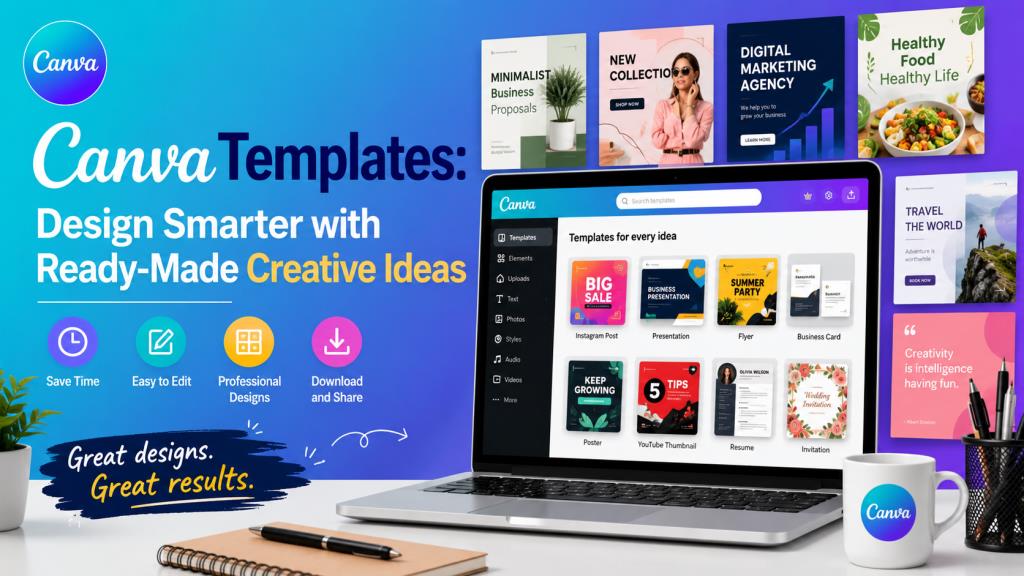
Canva Templates: Design Smarter with Ready-Made Creative Ideas
Creating professional-looking graphics no longer requires years of design experience or expensive software. Whether you’re designing a social media post, presentation, resume, flyer, business card, or marketing material, Canva templates have made quality design accessible to everyone.
From entrepreneurs and students to marketers and educators, millions of people rely on Canva every day because it simplifies the design process without sacrificing creativity. Instead of starting from a blank page, users can choose from thousands of professionally designed layouts and customize them in just a few minutes.
This guide explains everything you need to know about Canva templates—what they are, why they’re useful, how to choose the right one, customization tips, common mistakes to avoid, and how to get the best results. By the end, you’ll know how to use templates efficiently while still creating designs that look original and professional.
What Are Canva Templates?
Canva templates are pre-designed layouts that users can edit to suit their own needs. Think of them as professionally created starting points instead of finished designs.
Each template already includes design elements such as:
- Fonts
- Colors
- Images
- Icons
- Shapes
- Layouts
- Spacing
- Graphic elements
Rather than designing everything from scratch, you simply replace the placeholder content with your own text, photos, logos, or branding.
For example, if you need an Instagram post promoting a sale, you can search for a retail promotion template, change the product image, update the pricing, add your logo, and publish it within minutes.
This is exactly why Canva templates have become so popular—they save time while maintaining a professional appearance.
Why Canva Templates Have Become So Popular
One of the biggest reasons people choose Canva templates is simplicity. Professional graphic design often involves learning complex software, understanding typography, color theory, alignment, and composition.
Templates eliminate much of that complexity.
Instead of worrying about where to place text or how large an image should be, the design foundation has already been created by experienced designers.
Another major advantage is consistency. Businesses need every piece of content to look like it belongs to the same brand. Templates help maintain that visual consistency across social media posts, presentations, advertisements, newsletters, and printed materials.
Small business owners also benefit because they can produce attractive marketing materials without hiring a designer for every project.
Students appreciate templates for presentations, resumes, posters, and reports, while teachers often use them to create classroom materials and educational resources.
Content creators, bloggers, YouTubers, and influencers regularly depend on Canva templates to produce eye-catching thumbnails, Pinterest pins, Instagram stories, and promotional graphics quickly.
Different Types of Canva Templates You Can Use
One of Canva’s greatest strengths is its enormous collection of templates covering almost every design category imaginable.
Some of the most commonly used Canva templates include social media graphics for Instagram, Facebook, LinkedIn, TikTok, Pinterest, and YouTube.
Businesses frequently use presentation templates for client meetings, sales pitches, investor reports, and educational seminars.
Marketing professionals rely on flyer templates, brochures, posters, email headers, advertisements, and promotional banners.
Students often choose resume templates, certificates, infographics, research posters, and study planners.
Personal users enjoy invitation templates for birthdays, weddings, baby showers, graduation ceremonies, and holiday celebrations.
Businesses also create business cards, invoices, proposals, menus, price lists, newsletters, calendars, planners, and branded documents using Canva.
Because these categories already follow common design principles, users can produce polished work with minimal effort.
How to Choose the Right Canva Templates
Not every template fits every project. Choosing the right one can make the difference between an average design and one that immediately captures attention.
Start by identifying the purpose of your design.
If you’re promoting an event, choose templates designed specifically for event marketing rather than general social media graphics.
Consider your audience.
A corporate presentation usually requires clean layouts, simple typography, and professional colors. A children’s birthday invitation, on the other hand, benefits from bright colors, playful fonts, and fun illustrations.
Pay attention to color schemes.
Even if you plan to customize the colors later, selecting a template that already matches your general style will save editing time.
Typography is equally important.
Choose templates with readable fonts instead of overly decorative lettering, especially for business or educational content.
Another helpful tip is checking how much customization the template requires. Some templates are almost perfect and only need minor edits, while others may require significant changes before they match your vision.
Choosing wisely saves both time and effort.
Read More: CapCut Template Slow Motion: Create Viral Videos with Ease
How to Customize Canva Templates Like a Professional
Many beginners simply replace the text and export the design.
While this works, spending a few extra minutes customizing your design can make it look much more original.
Begin by replacing placeholder text with concise, meaningful content.
Avoid overcrowding the design. White space helps improve readability and gives the design a clean, modern appearance.
Next, update the colors to match your personal or business brand.
Using consistent brand colors builds recognition and makes your content look more professional.
Replace stock photos with your own images whenever possible.
Original photographs often create stronger engagement because they feel more authentic.
If you’re designing for a company, upload your logo and place it consistently across all marketing materials.
Experiment with icons, illustrations, and shapes to enhance the layout without making it cluttered.
One common mistake is changing every font in the template. Professional designers usually limit themselves to two or three complementary fonts.
Maintaining this balance helps your design remain visually appealing.
Remember that Canva templates are meant to inspire—not restrict—your creativity.
Best Practices for Getting the Most from Canva Templates
Using Canva templates effectively involves more than simply selecting the first design you like.
Start by searching with specific keywords rather than broad terms.
Instead of searching “poster,” try “minimal business poster” or “restaurant promotion flyer.” This produces more relevant results.
Save your favorite templates into folders so you can quickly find them for future projects.
If you’re creating content regularly, consider developing your own reusable template based on a customized design. This approach saves time while maintaining brand consistency.
Always review your design before exporting.
Check spelling carefully.
Ensure important information is accurate.
Verify that images appear sharp rather than blurry.
Look at spacing and alignment one final time.
Preview your design on the device where people will actually see it.
A mobile-friendly social media graphic should remain readable on a smartphone screen.
Similarly, printed materials should be checked for appropriate dimensions and print quality before sending them to a printer.
These small habits significantly improve the quality of your final work.
Common Mistakes People Make with Canva Templates
Although Canva templates simplify design, users still make mistakes that reduce their effectiveness.
One common issue is leaving placeholder text unchanged. Accidentally publishing “Your Text Here” looks unprofessional.
Another mistake is overloading the design with too many colors, icons, stickers, and decorative elements.
Good design often means removing unnecessary distractions rather than adding more.
Many users also ignore alignment.
Even a beautiful template can appear messy if text boxes and images are slightly misplaced.
Using too many fonts is another frequent problem.
A design with five different typefaces often looks confusing instead of creative.
Some people also forget about image quality.
Low-resolution photos can make otherwise attractive designs appear amateurish.
Finally, avoid copying templates without customization if you’re representing a business.
Since many people have access to the same layouts, making personal adjustments helps your content stand out.
Are Canva Templates Worth Using?
For most individuals and businesses, the answer is yes.
Professional designers may still prefer creating custom designs for highly specialized branding projects.
However, for everyday design needs, Canva templates provide an excellent balance between speed, affordability, and visual quality.
Small businesses save both time and money.
Teachers prepare engaging classroom materials more efficiently.
Students create polished assignments and presentations.
Content creators publish consistently across multiple platforms.
Nonprofit organizations design promotional campaigns without expensive software.
Even experienced designers sometimes use templates as creative starting points before applying advanced customization.
Rather than replacing creativity, templates remove repetitive design work and allow users to focus on communicating their message effectively.
The true value of Canva templates lies in their ability to make professional design accessible to almost everyone.
Final Thoughts
Design no longer has to be intimidating. Thanks to Canva templates, anyone can create attractive, professional-looking graphics without advanced technical skills.
The key is understanding that templates are foundations rather than finished products. By selecting the right layout, customizing it thoughtfully, maintaining consistent branding, and avoiding common mistakes, you can produce designs that look polished and unique.
Whether you’re running a business, studying at university, managing social media, promoting an event, or simply expressing your creativity, Canva templates offer a practical solution that saves time while delivering impressive results.
Instead of spending hours designing from scratch, you can focus on what truly matters—sharing your message clearly and creatively. As your confidence grows, you’ll find that templates become valuable tools for inspiration rather than limitations, helping you produce professional-quality designs again and again.
Frequently Asked Questions
Are Canva templates free to use?
Yes. Canva offers thousands of free templates. However, some premium templates are available only through Canva Pro.
Can I customize every part of Canva templates?
In most cases, yes. You can edit text, colors, fonts, images, icons, backgrounds, and layouts according to your needs.
Can businesses use Canva templates for commercial purposes?
Generally, yes, provided you follow Canva’s licensing terms for the elements included in your design. Always review the license when using premium assets.
Do Canva templates work for print projects?
Absolutely. Canva provides templates specifically designed for printing, including business cards, brochures, flyers, posters, menus, certificates, and invitations.
How can I make Canva templates look unique?
Replace stock images with your own, use your brand colors, upload your logo, adjust typography carefully, and personalize the layout instead of relying solely on the default design.
Are Canva templates suitable for beginners?
Yes. They are designed specifically to help beginners create professional-looking designs quickly while also allowing experienced users to customize them extensively.
Can I create my own Canva templates?
Yes. Once you’ve designed a layout you like, you can duplicate and reuse it for future projects, making your workflow faster and more consistent.