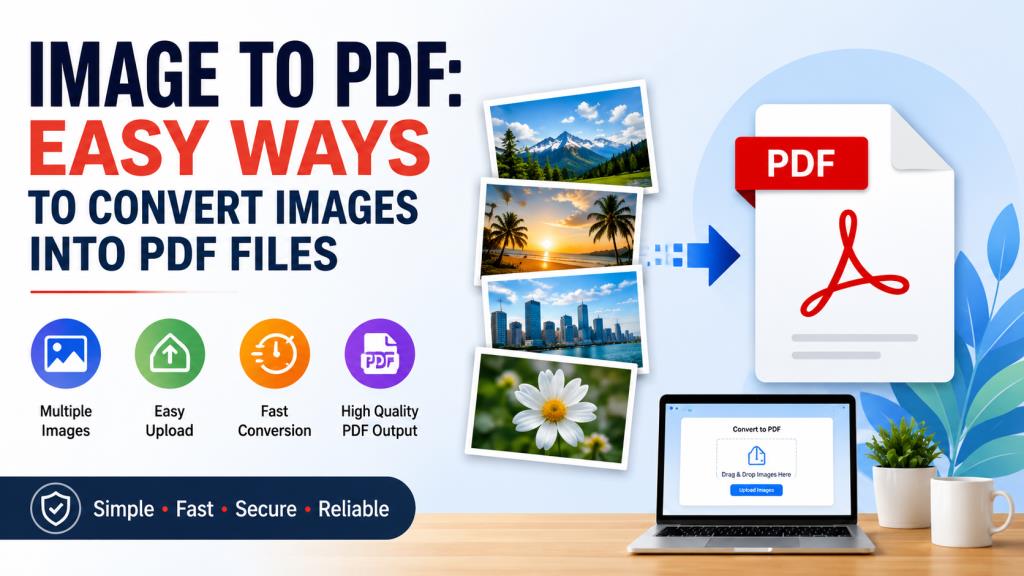
Image to PDF: Easy Ways to Convert Images into PDF Files
What Is Image to PDF Conversion?
Image to PDF conversion means changing one or more image files into a PDF document. The image can be a JPG, JPEG, PNG, BMP, TIFF, HEIC, or another supported format. The final PDF can then be saved, shared, printed, or uploaded to a website. The process is useful when you need to submit an image as a document. Many websites and online forms accept PDF files instead of separate image files. A PDF can also keep several images together in one organized document.
For example, you may have photos of several pages of a document. Instead of sending each photo separately, you can combine them into one PDF. This makes the file easier to manage.
Editprotipsai.net also focuses on practical digital tools and simple solutions that can make everyday file management easier.
Modern online converters make the process very simple. In many cases, you only need to upload an image, choose a few settings, and download the finished PDF. Tools from companies such as Adobe and Smallpdf currently support common image formats and browser-based conversion.
Why Should You Convert Images to PDF?
There are many reasons to convert an image into PDF format. The biggest benefit is convenience. A PDF is easier to share than a group of separate image files. A PDF can also put several images into one document. You can arrange the pages in the correct order before creating the final file. This is useful for scanned documents, receipts, forms, assignments, reports, and collections of photos.
PDF files are also widely supported across devices and operating systems. This makes them useful when you need to send a document to another person. Printing is another common reason. A PDF can provide more consistent page sizing and layout than individual images. This can help when the file needs to be printed or uploaded to a formal system.
For students, workers, and people submitting online documents, converting images to PDF can save time. Instead of managing many separate pictures, you can create one organized document.
How Does an Image to PDF Converter Work?
An image to PDF converter takes the visual information from an image and places it inside a PDF page. The basic conversion does not necessarily turn the text inside the image into editable text. It usually places the image itself onto the PDF page. Online converters normally process the file through a browser-based system. You select your image and upload it. The service processes the image and creates a PDF version.
Some tools provide additional settings. You may be able to change the page size, orientation, margins, or image order. Some services also allow several images to be combined into one PDF. The quality of the final PDF depends partly on the original image. If the original image is blurry or very small, converting it to PDF will not automatically make it clearer.
It is also important to understand the difference between conversion and OCR. Image to PDF conversion creates a PDF from an image, while OCR can recognize text inside an image and make that text searchable or editable. Some advanced PDF services offer OCR as a separate feature.
How to Convert an Image to PDF Online
Using an online image to PDF tool is usually the fastest option. You do not normally need to install a separate program. A modern web browser and an internet connection are often enough. The basic process is simple. First, open a trusted image-to-PDF converter. Then upload the image you want to convert. If the service supports multiple files, you can add more images.
After uploading, check the available settings. You may be able to choose the page size, orientation, and margins. Arrange multiple images in the correct order if needed.
Finally, select the convert option and wait for the process to finish. Download the PDF and open it to check the pages. Adobe’s current online image-to-PDF service supports formats such as JPG, PNG, BMP, and HEIC and provides a simple upload, conversion, and download process.
How to Convert Multiple Images Into One PDF
Converting several images into one PDF is useful when you have multiple pages of a document. It is much easier to send one PDF than many separate pictures. Most modern image to PDF services allow you to upload multiple images at the same time. You can then arrange the images in the order you want them to appear.
Before converting, check the page sequence carefully. The first image should be the first page of your document. The remaining images should follow in the correct order. You should also check the orientation of each image. A mixture of portrait and landscape images may make the final document look untidy. After conversion, open the PDF and review every page. Make sure the images are readable and no page is missing.
How to Convert Images to PDF on Mobile
You do not always need a computer to create a PDF. You can convert images to PDF directly from a smartphone. On Android and iPhone, you can use a browser-based converter or a dedicated PDF application. A browser-based tool can be convenient because it does not always require an additional app.
Start by opening the converter in your mobile browser. Select the images from your phone. Upload them and arrange them if the tool supports multiple files.
Then choose your preferred page settings and start the conversion. Once the PDF is ready, download it to your phone.
Mobile conversion is especially useful for scanned documents, receipts, forms, and photographs taken with a phone camera. Some online tools specifically support both Android and iOS through the browser.
How to Convert Images to PDF on Windows and Mac
Windows and Mac users have several ways to create PDFs from images. Online converters are one option. Built-in printing features can also be useful for simple conversions. On a computer, an online image to PDF service can be convenient when you want to convert files without installing software. You can upload your images through a browser and download the result.
Another advantage of desktop conversion is that it is easier to organize many files. You can rename your images before uploading them. You can also check their resolution and file size more easily. If the images contain private information, consider whether an online service is appropriate. For sensitive files, a trusted desktop application or an offline workflow may provide more control over the files.
Which Image Formats Can Be Converted to PDF?
The formats supported by an image to PDF tool depend on the service. JPG and PNG are among the most common formats. Many modern converters support additional formats. These may include JPEG, BMP, TIFF, GIF, WebP, and HEIC. Some advanced services support even more specialized image formats.
Adobe currently lists support for formats including JPEG, JPG, PNG, BMP, HEIC, TIFF, GIF, PSD, INDD, and AI in its online image-to-PDF tool.
Smallpdf also currently lists support for common formats such as JPG, JPEG, PNG, TIFF, GIF, BMP, WebP, and HEIC.
| Image Format | Common Use | Image to PDF Support | Main Advantage |
|---|---|---|---|
| JPG/JPEG | Photos and scans | Usually supported | Small file size |
| PNG | Screenshots and graphics | Usually supported | Good clarity |
| HEIC | Smartphone photos | Supported by many modern tools | Efficient image storage |
| TIFF | Scans and high-quality images | Supported by some tools | High image quality |
| BMP | Basic image files | Supported by some tools | Simple image format |
| GIF | Simple graphics | Supported by some tools | Useful for basic images |
| WebP | Web images | Supported by newer tools | Efficient compression |
If your image format is not accepted, you can first convert it to JPG or PNG. Then use the image to PDF converter.
Best Features to Look for in an Image to PDF Converter
Not every converter offers the same features. A good tool should be easy to use and should produce a clean PDF without unnecessary steps.
Look for support for multiple image formats. This is useful if you work with different types of files. Multi-image support is also important if you often need to combine several pictures into one PDF. Page controls can make a major difference. Features such as page size, orientation, margins, and image ordering help you create a better final document.
Security is another important feature. If you are uploading private documents, check how the service handles your files. Look for clear information about encryption, storage, and file deletion. A good converter should also work well on different devices. Browser-based services can be useful because they can work on Windows, Mac, Android, and iPhone without requiring a separate installation.
Free vs Paid Image to PDF Converters
Many image to PDF tools offer free conversion. This can be enough if you only need occasional conversions.
Free tools may have limits. These can include daily conversion limits, file-size limits, fewer advanced features, or restrictions on batch processing.
Paid services usually target people who work with PDF files regularly. They may offer additional PDF tools, larger processing limits, OCR, compression, editing, or cloud features.
The best choice depends on your needs. There is no reason to pay for a premium service if you only convert a few simple images occasionally.
However, professionals who handle large numbers of files may benefit from a paid service. Before subscribing, check the current pricing and feature limits because these can change over time.
Read More: AI Photo Editor Anup Sagar: Viral Photo Editing Tutorial
Are Online Image to PDF Converters Safe to Use?
Security should be considered before uploading any document to an online converter. This is especially important when the image contains personal or confidential information.
Check the service’s privacy policy and file-handling rules. Look for information about encryption and how long uploaded files remain on its servers.
For example, Smallpdf currently states that transfers are protected with TLS encryption and that processed files are automatically deleted after one hour.
Adobe’s online image-to-PDF service also states that uploaded files are securely handled and deleted unless the user signs in to save them.
These policies can change, so users should always check the current terms of the specific service they choose.
For extremely sensitive documents, an offline conversion method may be preferable. Avoid uploading confidential files to unknown websites simply because the tool is free.
How to Maintain Image Quality When Converting to PDF
Converting an image to PDF does not automatically improve the original image. The final quality depends largely on the source image and the conversion settings. Start with a clear, high-quality image. If you are taking a photo of a document, use good lighting and keep the camera steady. Make sure the entire page is visible.
Avoid excessive compression when quality is more important than file size. Strong compression may reduce the clarity of small text or detailed images. At the same time, a very large PDF can be difficult to upload or share. If a website has a strict file-size limit, you may need to compress the PDF after conversion.
Always check the final PDF before submitting it. Zoom in and make sure important text, numbers, signatures, and other details are readable.
Common Problems With Image to PDF Conversion
Image conversion is usually straightforward, but problems can happen. A file may fail to upload because it is too large or because the format is not supported. A weak internet connection can also interrupt an online conversion. If the upload stops, try again with a stronger connection.
Sometimes the final PDF may look different from the original image. The page orientation may be incorrect, or the image may have too much white space.
Another common issue is a PDF that is too large. This can happen when the original images have very high resolution. Compressing or resizing the images can help reduce the final file size.
If an image will not convert, try opening it first. If it appears damaged, save it again as JPG or PNG and then try the conversion again.
Image to PDF Converter Review: Pros, Cons, and Best Uses
An image to PDF converter is a useful tool for anyone who regularly works with pictures and documents. The main advantage is convenience. You can quickly turn separate images into a standard document format.
Online tools are especially useful because they usually require no installation. They can also work across different operating systems. Many services now support multiple image formats and allow several images to be combined into one PDF.
The main disadvantage is that online conversion requires uploading files to a third-party service. This may not be suitable for highly confidential information.
Another possible disadvantage is the presence of limits in free plans. Some tools may restrict the number of conversions, file size, or advanced features.
Overall, an image to PDF converter is a good choice for everyday document work. It is particularly useful for students, office workers, freelancers, businesses, and anyone who needs to submit images as PDF documents.
For occasional use, a free browser-based service is often enough. For frequent professional use, look for a service with strong privacy controls, batch processing, reliable quality, and useful PDF management features.
Frequently Asked Questions About Image to PDF
How do I convert an image to PDF?
Upload your image to a trusted image-to-PDF converter, choose any available page settings, and select the convert option. After processing, download the PDF and check the result.
Can I convert JPG to PDF?
Yes. JPG is one of the most commonly supported image formats for PDF conversion. Most popular online PDF tools support JPG and JPEG files.
Can I convert several images into one PDF?
Yes. Many modern converters allow you to upload multiple images and combine them into a single PDF. You can usually arrange the images before conversion.
Can I convert an image to PDF on my phone?
Yes. You can use a mobile browser or a PDF application. Many online converters work on both Android and iPhone devices.
Does converting an image to PDF reduce quality?
It can, depending on the converter and settings. A good converter can preserve much of the original quality. However, compression may reduce clarity if it is set too aggressively.
Can I convert PNG to PDF?
Yes. PNG is widely supported by image-to-PDF tools. It is commonly used for screenshots, graphics, and images where clear edges are important.
Is an online image to PDF converter free?
Many services offer free conversion. However, free plans may have restrictions. Always check the current terms of the service before using it for large or frequent conversions.
Is it safe to upload images to an online converter?
It depends on the service. Always check its privacy policy, encryption practices, and file deletion policy before uploading sensitive documents. For confidential information, consider using an offline tool.
How can I reduce the size of an image PDF?
You can reduce the image resolution or compress the PDF after conversion. The right method depends on how small the file needs to be and how much quality you can accept losing.
What is the best image to PDF converter?
There is no single best tool for everyone. The right option depends on your required formats, file size, batch conversion needs, privacy requirements, quality, and budget.
Final Thoughts
Image to PDF conversion has become a simple part of everyday digital work. You can use it to organize photos, scan documents, prepare assignments, submit forms, and share multiple images as one file.
The best tool depends on your situation. For occasional tasks, a free online converter may be enough. For regular work, look for additional features such as batch conversion, compression, page controls, OCR, and strong privacy protection.
Most importantly, check the quality and security of the converter before using it. A good image to PDF tool should make the process faster without making your documents difficult to read or putting private information at unnecessary risk.
With the right converter, turning an image into a professional PDF can take only a few moments.