
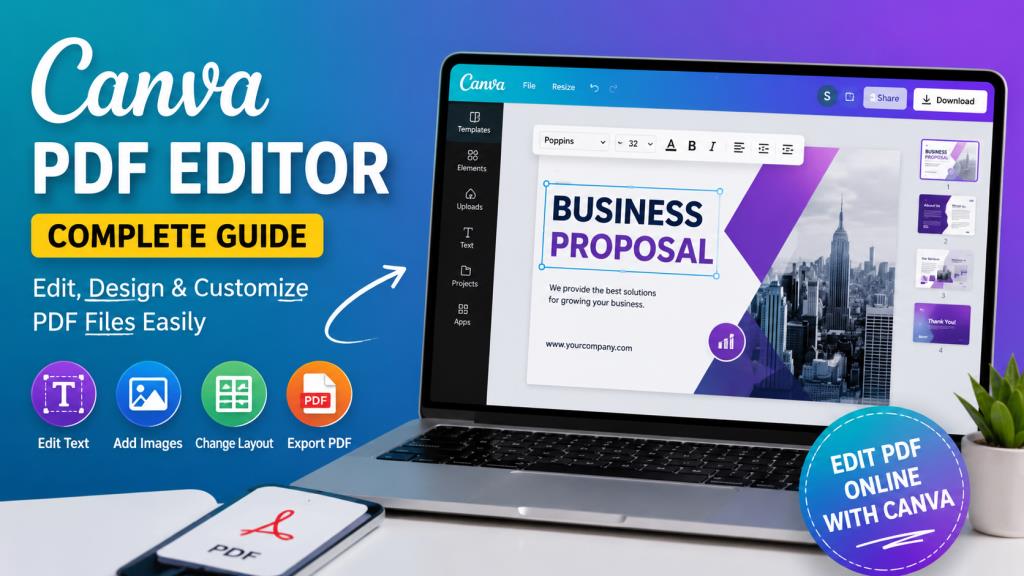
Canva PDF Editor: Complete Guide to Editing PDFs Online
Introduction to Canva PDF Editor
PDF files are widely used for documents, forms, presentations, brochures, resumes, and business materials. However, editing a PDF can sometimes feel difficult, especially for beginners. Canva PDF Editor offers a simple way to work with PDF files while also giving users access to Canva’s popular design tools.
Canva is mainly known as a graphic design platform, but it can also be used to import and edit PDF documents. You can upload a PDF, make changes to supported elements, add new designs, adjust pages, and export the finished document.
In this guide, we will explain Canva PDF Editor in simple English. You will learn how it works, how to edit PDF files, its main features, benefits, limitations, and more.
What Is Canva PDF Editor?
Canva PDF Editor is a Canva feature that allows users to import PDF files and make design or content changes within the Canva editor. After uploading a PDF, Canva can convert the document into an editable Canva design. Depending on the PDF structure, some text, images, graphics, and other elements may become editable.
This makes Canva useful for people who want to make quick visual changes without using complicated professional PDF software. For example, you can use Canva to edit a brochure, update a presentation, change images in a document, or redesign certain parts of a PDF.
Can You Edit a PDF in Canva?
Yes, you can edit many PDF files in Canva. The process is designed to be beginner-friendly. You normally start by uploading your PDF to Canva. The platform processes the document and opens it in the editor. From there, you can work with the available elements.
However, PDF editing in Canva has some limitations. A PDF may not always convert perfectly, particularly when it contains complex formatting, unusual fonts, scanned pages, forms, or complicated layouts.
Therefore, Canva works especially well when your main goal is visual editing and design customization rather than advanced PDF document management.
How to Upload a PDF to Canva
Uploading a PDF is one of the easiest parts of the process. You can access Canva through a web browser or a supported mobile device and then upload your document. A typical workflow is to open Canva, choose the option to upload or import a file, and select your PDF. After processing, Canva creates a design based on the document.
Once the PDF opens in the editor, you can review each page and check whether the elements were imported correctly. Always check the original document after importing it, especially if the PDF contains important business, academic, or professional information.
How to Edit Text in a PDF Using Canva
One of the main reasons people use Canva PDF Editor is to make changes to text. After opening your PDF, select the text element you want to modify. If Canva has successfully recognized the text as editable, you may be able to change the wording, font, size, alignment, or other formatting options.
You can also add new text boxes when necessary. Keep in mind that text editing depends on how the original PDF was created. Text contained inside an image or scanned document may not behave like normal editable text. For important documents, compare the edited version with the original to make sure no text has moved or changed unexpectedly.
How to Add and Edit Images in a PDF
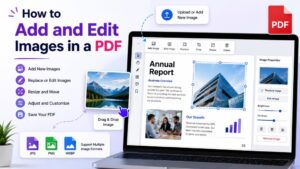
Canva is particularly useful when you want to change the visual elements of a PDF. You can add images from your uploaded files or use Canva’s available design resources. You can also resize, reposition, and adjust images within the design.
For example, you might replace an old company logo with a new one or add a photograph to a brochure. The drag-and-drop interface makes these changes relatively simple, even for users who have little graphic design experience.
How to Change PDF Layout and Design
A PDF does not have to remain exactly the same after you import it into Canva. You can modify the visual appearance of supported elements, adjust spacing, move objects, and change certain design components. You can also use Canva’s design tools to create a more attractive layout.
This can be helpful when updating marketing materials, invitations, posters, resumes, worksheets, and other visual documents. However, avoid making too many changes at once. If the original PDF has a carefully arranged layout, moving one element may affect the position of other elements.
How to Add or Delete PDF Pages
Another useful feature is the ability to manage pages within your Canva design. After importing a PDF, each page generally appears as a separate design page. You can review the pages and remove pages you no longer need.
You can also add new pages and create additional content using Canva’s design tools. This is useful when you want to combine an existing PDF with newly created pages. For example, you could add a cover page, introduction, or additional information before exporting the final document.
How to Use Canva PDF Editor for Free
Canva offers both free and paid plans, and some features or resources may depend on the plan you use. For basic PDF editing and design tasks, the free version can be useful. You can upload documents, work with available editing tools, and create designs without necessarily needing advanced professional software.
However, some templates, graphics, photos, fonts, and other Canva resources may be available only through paid plans. If you only need basic PDF editing, start with the free options and see whether they meet your needs before considering a paid subscription.
How to Download an Edited PDF From Canva
After finishing your edits, you can export your design as a PDF. Before downloading, carefully review the entire document. Check the text, images, page order, spacing, and formatting.
Then use Canva’s download or export option and select the appropriate PDF format available for your project. Always open the downloaded PDF and check it before sharing or publishing it. This simple step can help you find formatting problems that were not obvious inside the editor.
Canva PDF Editor on Mobile and Desktop
Canva is available across different devices, making it convenient for users who work on both computers and mobile devices. A desktop or laptop is generally more comfortable for detailed PDF editing because the larger screen makes it easier to select small elements and manage page layouts.
Mobile devices can be useful for quick edits, reviewing documents, or making simple changes while away from your computer. For larger PDFs or projects with many design elements, however, a desktop environment may provide a better editing experience.
Key Features of Canva PDF Editor
The biggest advantage of Canva PDF Editor is the combination of PDF handling and graphic design tools.
Some useful capabilities include:
- PDF import: Upload an existing PDF and work with it in Canva.
- Text editing: Modify supported text elements.
- Image editing: Add, replace, resize, and reposition images.
- Page management: Organize, add, or remove pages.
- Design tools: Use Canva’s templates and creative elements.
- PDF export: Download the completed design as a PDF.
These features make Canva particularly attractive to beginners who want a simple design-focused solution.
Benefits and Limitations of Canva PDF Editor
There are several reasons users may prefer Canva for basic PDF editing. Its interface is easy to understand, and the platform combines editing and design in one place. It can be especially useful for visually focused documents such as brochures, flyers, resumes, invitations, and marketing materials.
However, it is not a replacement for every professional PDF application. Advanced users may need features such as detailed form editing, complex PDF security controls, specialized document workflows, or advanced text recognition.
Another potential issue is formatting. Imported PDFs may not always look exactly like the original document, especially when they contain complex layouts or unusual fonts.
Learn More: Instagram Reels Download Video: Complete Guide & Full Review
Canva PDF Editor vs Other PDF Editors
Canva is primarily a design platform, so its biggest strength is visual customization. Traditional PDF editors often focus more heavily on document-level editing and professional PDF management.
If your goal is to redesign a visually attractive document, Canva can be a convenient choice. If you need advanced PDF functions, a dedicated PDF application may be more appropriate.
| Feature | Canva PDF Editor | Traditional PDF Editors |
|---|---|---|
| Beginner-friendly interface | Yes | Depends on the software |
| Graphic design tools | Strong | Varies |
| Templates | Extensive | Usually more limited |
| Basic text editing | Yes | Yes |
| Image editing | Strong | Varies |
| Page management | Yes | Yes |
| Advanced PDF functions | Limited | Often stronger |
| Design-focused editing | Excellent | Depends on the tool |
The best choice depends on the type of PDF you are working with.
Frequently Asked Questions About Canva PDF Editor
Is Canva PDF Editor free?
Canva provides free features that can be used for basic design and PDF-related tasks. However, some premium resources and features require a paid plan.
Can I edit PDF text in Canva?
Yes, supported text elements in an imported PDF can often be edited. The result depends on how the original PDF was created.
Can I add images to a PDF in Canva?
Yes. Canva allows you to add and customize images and other design elements in your document.
Can Canva edit scanned PDFs?
Scanned PDFs can be more difficult to edit because their pages may essentially be images rather than editable text. The editing experience can therefore differ from a normal text-based PDF.
Can I download my edited PDF from Canva?
Yes. After completing your design, you can export it in a PDF format supported by Canva.
Is Canva good for PDF editing?
Canva is a good choice for simple, design-focused PDF editing. It is particularly useful for beginners and for documents where appearance and visual design are important.
Final Verdict
Canva PDF Editor is a convenient option for users who want to make simple PDF changes while using familiar graphic design tools. Its easy interface makes it suitable for beginners, while its templates and creative features make it useful for visually focused documents.
It is especially helpful for editing brochures, resumes, invitations, presentations, flyers, and other design-heavy PDFs.
However, Canva is not designed to replace every advanced PDF editing application. If you need complex document controls or professional PDF management, a dedicated PDF editor may be a better choice.
For simple PDF editing combined with creative design, Canva is a practical option worth trying.

One Comment