
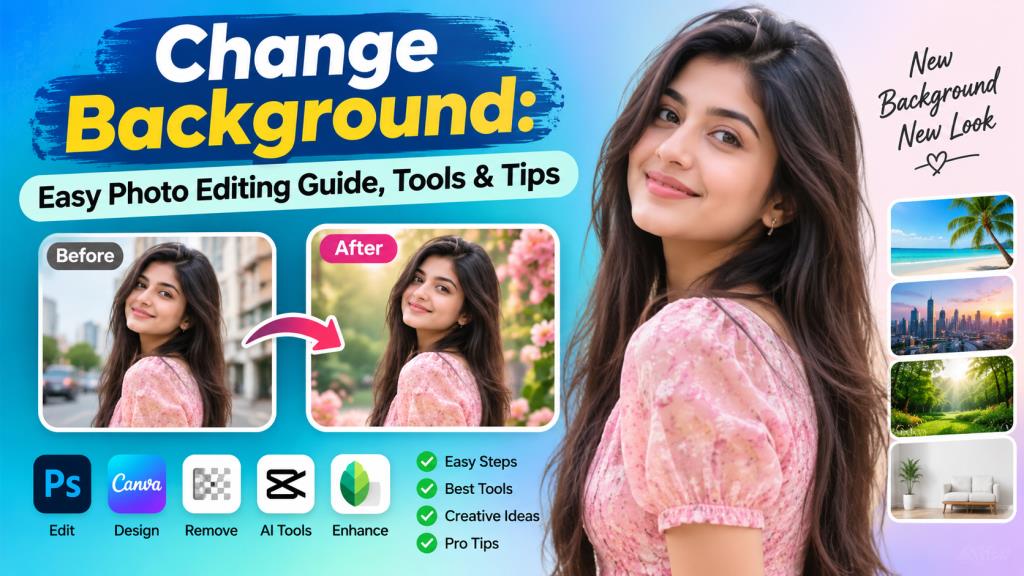
Change Background: Easy Photo Editing Guide, Tools & Tips
Introduction to Change Background
Photos are an important part of everyday life. People use them for social media, websites, online shops, portfolios, resumes, and personal memories. However, a good photo can sometimes have a distracting or unsuitable background. This is where the ability to change background becomes useful.
Changing a photo background is no longer limited to professional designers. Modern editing tools can remove an unwanted background and replace it with a new one in just a few steps. Some tools even use artificial intelligence to detect people and objects automatically. In this guide, you will learn what change background means, how the process works, which tools you can use, and how to create a realistic final image.
What Does Change Background Mean?
Change background means removing the existing background from an image and replacing it with another background. The main subject, such as a person, product, or object, remains in the image while the surrounding area is edited.
For example, you may have a portrait taken in a busy street. You can remove the street and place the person in a studio, beach, office, or simple solid-color background. The process can be done manually with advanced photo editors or automatically with online and AI-powered tools. The best method depends on the image, your editing skills, and the result you want.
Why Change the Background of a Photo?
There are many reasons people decide to change background in their photos. One common reason is to remove unwanted objects or distractions. A clean background can make the main subject stand out more clearly. Background editing is also useful for professional purposes. Businesses can create clean product images for online stores. Job seekers can improve profile photos by using a simple and professional background.
Social media creators also use background changes to create different visual styles. A single portrait can look completely different when placed in a modern room, outdoor location, colorful design, or studio setting. Another benefit is flexibility. You do not always need to travel to a special location to get a particular background. You can create the desired appearance through editing.
How Does a Background Changer Work?

A background changer first identifies the main subject and separates it from the background. This step is often called background removal or subject selection. Traditional editing software may require you to select the subject manually using tools such as a brush, selection tool, or pen tool. This can provide precise results but may take time.
AI-powered tools work differently. They analyze the image and try to recognize important areas such as people, faces, hair, clothing, animals, or products. The software then automatically separates the subject from the background. After removal, you can add another image, color, gradient, or design behind the subject. Some tools also provide shadows, blur effects, lighting adjustments, and other features to make the new background fit better.
How to Change Background Online
Online background changers are convenient because they do not usually require complicated software installation. Most work directly through a web browser. First, select a reliable online editing tool and upload your photo. The tool will process the image and remove the original background. Depending on the service, this may happen automatically within a few seconds.
Next, choose a new background. You may upload your own image or select one from the tool’s available designs. Adjust the position and size of the subject if necessary. Before saving the image, check the edges around the hair, shoulders, hands, and other detailed areas. If everything looks natural, export the finished photo in the available format and quality.
How to Change Background on Mobile
You can also change background directly from a smartphone. This is useful for people who create social media content or edit photos while traveling. Start by installing a trusted photo editing application. Import the image you want to edit and look for a background removal or cutout feature.
After the original background has been removed, select a new image or color. Many mobile editors allow you to resize, rotate, and reposition the subject. Take some time to check the final result before saving. Small problems around hair or clothing can become noticeable when the image is viewed on a larger screen.
How to Change Background Using AI
AI has made background editing much easier. Instead of manually selecting every part of a subject, an AI editor can often detect the subject automatically. To use an AI background changer, upload your image and allow the tool to analyze it. The AI identifies the foreground and removes the surrounding background. You can then describe or select the type of background you want.
For example, you might choose a professional office, natural landscape, simple studio, or colorful creative scene. Some advanced tools can also generate a new background based on a written description. However, AI results are not always perfect. Images with complicated hair, transparent objects, shadows, or similar colors between the subject and background may need additional editing.
How to Remove a Photo Background

Removing the original background is one of the most important steps in the process. A clean cutout helps the replacement background look realistic.
Choose a clear image with good lighting whenever possible. Upload it to your editing tool and use its automatic background removal feature.
After removal, inspect the edges carefully. Look around the hair, fingers, clothing, and other small details. If the editor provides a manual erase or restore brush, use it to correct any mistakes. A high-quality cutout creates a strong foundation for the rest of the editing process.
How to Add a New Background
Once the original background has been removed, you can add a replacement. The easiest choice is often a simple color or gradient because it keeps attention on the main subject. You can also use another photograph. For example, a portrait can be placed in a garden, office, classroom, studio, or travel location.
Make sure the new background matches the subject. Consider the direction of light, perspective, colors, and overall image quality. A background that looks too sharp or poorly aligned can make the edited image look artificial.
Learn More: InShot Mod APK: Features, Benefits, Risks & Full Guide
Best Tools to Change Background
There are many tools available for background editing. Online background removers are suitable for quick edits, while mobile applications are convenient for everyday use.
More advanced desktop photo editors provide greater control over selections, layers, shadows, colors, and lighting. AI-powered editors are useful when you want quick automatic results.
When choosing a tool, consider its ease of use, export quality, available editing features, privacy practices, and whether it adds a watermark. The best tool is not necessarily the one with the most features. It should match your editing needs and experience level.
Best Background Ideas for Photos
The right background depends on the purpose of the image. For professional portraits, a clean office, studio, or neutral background usually works well.
For social media, colorful rooms, nature scenes, city views, and creative designs can make an image more attractive. Product photos often look better with simple backgrounds that keep attention on the product.
You can also experiment with blurred backgrounds, gradients, seasonal scenes, or minimal designs. The key is to choose something that supports the subject instead of distracting from it.
Tips for Making Backgrounds Look Natural

A successful change background edit should look believable. One of the most important factors is lighting. The subject and new background should appear to have similar light direction and intensity.
Pay attention to shadows as well. If the original subject has a strong shadow but the new background has completely different lighting, the result may look unnatural.
Color matching is also important. Adjust brightness, contrast, temperature, and saturation when needed. Keep the subject at a realistic size and make sure the perspective fits the new environment.
Finally, avoid backgrounds that are unnecessarily busy. A simple and well-matched background often produces a better result.
Common Mistakes When Changing Backgrounds
One common mistake is choosing a background that does not match the subject. Differences in lighting, perspective, or image quality can make the edit obvious.
Another mistake is ignoring the edges. Rough edges around hair, fingers, and clothing can reduce the quality of the final image.
Using a low-resolution background is another problem. If the background is blurry or pixelated while the subject is sharp, the image may look edited.
It is also easy to overuse effects. Excessive blur, strong colors, or unrealistic shadows can make a simple photo look unnatural. Keep the editing balanced and focus on creating a clean result.
Frequently Asked Questions About Change Background
Can I change background without Photoshop?
Yes. Many online tools and mobile applications allow you to remove and replace a background without using professional desktop software.
Can AI automatically change a photo background?
Yes. Many AI editors can detect the main subject, remove the existing background, and help create or add a replacement.
Will changing the background reduce photo quality?
It can if you use low-quality images or export the final image at a small resolution. Using high-quality source and background images can help maintain better results.
Can I change the background of a product photo?
Yes. Background editing is commonly used for product images. A clean background can make the product easier to see and can give the image a more professional appearance.
What makes a changed background look realistic?
Matching lighting, colors, perspective, shadows, and image quality are important. The subject should also be positioned naturally within the new scene.
Is it difficult for beginners to change background?
No. Automatic and AI-powered tools have made the process much easier. Beginners can usually complete a basic edit with only a few steps.




One Comment