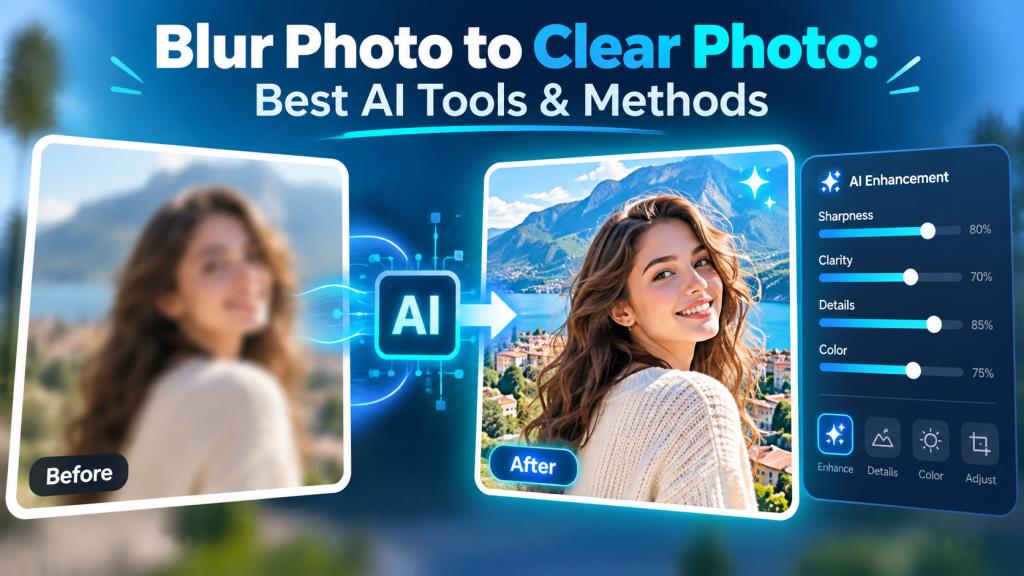
Blur Photo to Clear Photo: Best AI Tools & Methods
Blurry photos are a common problem. You may take a good picture, but camera shake, poor focus, low light, or low resolution can make it unclear. The good news is that modern AI tools can improve many blurry images.
Today, you do not always need advanced photo editing skills. Many online tools and mobile apps can sharpen images automatically. They can reduce blur, improve faces, remove noise, and increase resolution.
This guide explains everything you should know about blur photo to clear photo conversion. It also reviews useful AI tools and explains how to choose the right method.
What Is Blur Photo to Clear Photo?
Blur photo to clear photo means improving a blurry, soft, pixelated, or low-quality image so that it looks clearer and sharper. The process may include sharpening edges, reducing noise, improving details, fixing faces, and increasing image resolution. Older editing software mainly used sharpening filters. These filters increased contrast around the edges of objects. They could make a photo appear sharper, but they could not truly recover much missing information.
AI tools work differently. They study patterns in a photo and try to rebuild details that are difficult to see. This is especially useful for faces, old photos, product images, and small pictures. At editprotipsai.net, we focus on practical AI editing methods that ordinary users can understand. For that reason, this guide explains both easy tools and important limitations.
You should also understand that no tool can perfectly restore every badly blurred photo. AI can improve an image, but extremely damaged information may already be lost.
Why Do Photos Become Blurry?
Photos can become blurry for many reasons. Understanding the reason helps you choose the right blur photo to clear photo method.
The most common causes include:
- Camera movement: Your hand moves while the camera is taking the picture.
- Subject movement: A person, animal, or object moves during the shot.
- Wrong focus: The camera focuses on the background instead of the main subject.
- Low light: The camera uses a slower shutter speed, which increases motion blur.
- Low resolution: Small images may look pixelated when enlarged.
- Digital zoom: Heavy zoom can reduce image detail.
- Compression: Social media and messaging apps may reduce image quality.
- Old photographs: Printed photos can fade, become grainy, or lose detail with time.
Sometimes a photo has several of these problems together. For example, an old scanned photo may have low resolution, noise, faded colors, and soft facial details.
Can a Blurry Photo Really Be Made Clear?
Yes, many blurry photos can be improved. However, the final result depends on how much original information remains in the image. A slightly out-of-focus portrait can often be improved very well. AI may sharpen the eyes, hair, face, and clothing. A low-resolution image can also be enlarged and cleaned.
However, a photo with extreme motion blur is harder to repair. If a face is completely unrecognizable, AI does not have enough real information to recover every original detail. This is an important point. AI enhancement is not the same as recovering the exact original pixels. Some tools may generate details based on patterns learned during AI training.
That means the improved face may look convincing but may not be perfectly identical to the original person. For casual photos, social media pictures, and old family images, this may be acceptable. For legal evidence, official documents, medical images, or forensic work, AI-generated details should be treated carefully.
How AI Makes a Blur Photo Clear
Modern AI enhancement tools analyze millions of visual patterns during their training process. When you upload a blurry picture, the system looks at edges, textures, colors, faces, and objects. It then tries to predict what a higher-quality version may look like.
For example, if a face is blurry, AI may recognize the normal shape of eyes, eyebrows, lips, skin, and hair. It can then improve those areas while reducing noise. Many tools combine several processes. These may include AI sharpening, noise reduction, facial restoration, color improvement, and image upscaling.
Remini, for example, currently offers AI features designed to sharpen blurry and low-quality photos, including portraits and old images. AI can produce impressive results, but you should always compare the enhanced image with the original. Too much enhancement can make skin, hair, text, or small objects look artificial.
Types of Blurry Photos You Can Improve
Different photos need different correction methods. A portrait does not have the same problem as a blurry landscape or screenshot. Out-of-focus photos can often be improved by increasing sharpness and clarity. AI may help recover facial details.
Motion-blurred photos are more difficult. Mild camera shake can sometimes be reduced. Strong motion blur may remain visible. Pixelated images usually benefit from AI upscaling. Upscaling increases image dimensions while AI attempts to create smoother edges and clearer details.
Old photos may need more than sharpening. They may also need noise removal, face restoration, contrast improvement, and color correction. Compressed social media images often contain blocky areas and lost details. AI enhancement can reduce some of these problems.
For the best blur photo to clear photo result, first identify the main problem. Then choose a tool designed for that type of image.
Best Blur Photo to Clear Photo Tools Online
There are many online tools for improving blurry photos. Some focus on quick sharpening. Others use advanced AI restoration.
Adobe Express is useful when you want a simple editor with manual control. Its current unblur workflow allows users to upload an image and adjust the Sharpen setting. It works through Adobe Express on desktop and mobile.
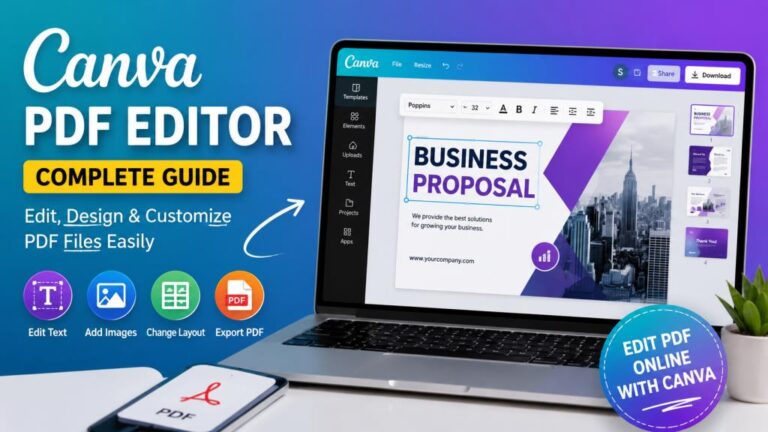
Canva is another convenient choice. Its image tools include sharpening, clarity adjustment, and AI upscaling. Canva says its Upscale feature can improve blurry edges and increase image clarity.
Remini focuses strongly on AI restoration. It is especially known for portraits, faces, old photographs, and low-quality pictures. Its official tools include blur reduction and low-quality photo enhancement.
PicWish also provides AI-based enhancement, sharpening, restoration, and upscaling. A recent 2026 comparison includes it among tools designed for portrait enhancement and general unblurring.
No single tool will give the best result for every photo. Testing the same image in two or three tools is often useful.
Blur Photo to Clear Photo Tools Comparison
| Tool | Best For | Main Strength | Easy for Beginners | Platform |
|---|---|---|---|---|
| Adobe Express | General photos | Manual sharpening and editing | Yes | Web, Mobile |
| Canva | Social media and design images | Sharpening, clarity and upscaling | Yes | Web, Android, iOS |
| Remini | Portraits and old photos | AI face and detail restoration | Yes | Web, Mobile |
| PicWish | General enhancement | AI sharpening and upscaling | Yes | Web, Mobile |
| Fotor | Quick photo editing | Enhancement plus editing tools | Yes | Web, Mobile |
| VanceAI | Upscaling and sharpening | Resolution and detail improvement | Moderate | Web |
| Let’s Enhance | Large and higher-resolution output | AI upscaling | Moderate | Web |
| Upscale.media | Simple image upscaling | Fast automatic processing | Yes | Web |
The exact free limits and premium features of these services can change. Check the tool’s current pricing page before choosing a paid plan.
Best Blur Photo to Clear Photo Apps for Android
Android users have several easy ways to improve blurry photos. Remini is popular for AI-based portraits and restoration. Canva is useful when you want to enhance the picture and then create a social media design. Adobe Express is helpful when you prefer manual editing controls.
A good Android app should be simple and fast. You should also check export resolution and whether the free version adds restrictions.
When using a blur photo to clear photo app, avoid applying maximum enhancement automatically. Start with the normal AI enhancement. Then compare it with the original photo.
Faces deserve special attention. Some AI tools may change small facial features when the original picture is very blurry. Look closely at the eyes, teeth, ears, hair, and skin before saving the final image.
Best Blur Photo to Clear Photo Apps for iPhone
iPhone users can use many of the same popular enhancement apps available on Android. Remini is useful for improving old portraits and low-resolution faces. Canva is suitable for people who need enhancement together with graphic design. Adobe Express gives users more editing options after sharpening.
Canva’s current image sharpening tools are available through its mobile experience, and its AI upscaling features can help improve low-quality images. Your iPhone’s own Photos app can also improve brightness, contrast, definition, and sharpness. However, dedicated AI tools may produce stronger results when facial detail or resolution is missing.
Try to keep the original image before editing. This allows you to test several versions without repeatedly compressing the same file.
How to Make a Blur Photo Clear Online for Free
You can complete a basic blur photo to clear photo process without installing software.
- Choose a trusted enhancer. Open a service such as Adobe Express, Canva, Remini, or another reliable AI image enhancer.
- Upload the original image. Use the highest-quality version available. Avoid using a screenshot of the image if you have the original file.
- Apply enhancement or sharpening. Start with automatic enhancement. If manual settings are available, increase sharpness slowly.
- Check important details. Zoom in on the face, text, hair, hands, and object edges.
- Compare before and after. Make sure the edited version looks clearer but still natural.
- Download the best-quality version. Choose a high-resolution output when available.
Free tools can be enough for occasional editing. However, some services may limit image size, daily processing, credits, or premium enhancement options.
How to Make a Blurry Photo Clear on Mobile
Mobile editing is one of the easiest options because you can take, enhance, and share the photo using one device. Open your chosen editing app and import the original picture. Look for options such as Enhance, Sharpen, Unblur, Restore, Upscale, HD, or Improve Quality.
Run the automatic enhancement first. Then inspect the result. If the picture looks too sharp, reduce the effect. Over-sharpening can create bright edges around objects. It may also make skin look rough.
After improving the blur, you can adjust brightness, contrast, shadows, highlights, and color. These small changes can make the final image look clearer without depending only on AI. Do not save and edit the same JPEG many times. Repeated compression may reduce quality.
Best AI Photo Enhancers for Blurry Images
The best AI photo enhancer depends on what you need. For portraits and old family photos, Remini is worth testing because its current tools focus heavily on facial restoration, blur reduction, and old-photo improvement.
For social media images and design work, Canva is convenient because you can sharpen or upscale an image and continue designing in the same platform. For users who want simple manual sharpening, Adobe Express provides a straightforward Sharpen adjustment.
For general AI enhancement, tools such as PicWish and Fotor are also common options. Recent tool comparisons list both among beginner-friendly solutions for blurry and low-quality images. Instead of asking which enhancer is always best, ask which one works best for your specific photo.
Read More: Best Video Editing App in India: Features, Price & Top Choice
How to Improve Old and Low-Quality Photos
Old photos often need more work than modern blurry pictures. First, scan the photo at good quality if you have a printed copy. A poor scan will limit what AI can improve.
Then remove obvious noise and improve contrast. After that, use an AI restoration or face enhancement tool. Remini’s current photo restoration tool is designed to sharpen old photographs, reduce grain, and enhance facial features.
Be careful with very old family portraits. Strong AI reconstruction may create facial details that were not clearly visible in the original photo. For important memories, save two versions. Keep the untouched scan as your archive copy. Keep the enhanced picture as a separate version.
This gives you the benefits of blur photo to clear photo enhancement without losing the original historical image.
Free vs Paid Blur Photo to Clear Photo Tools
Free tools are useful for testing AI enhancement. They are often enough if you only need to improve a few personal photos. Paid tools usually provide higher limits, larger output sizes, more AI processing, batch editing, or additional restoration features.
Before paying, test the service with one difficult image. Check whether the result looks natural. Also compare it with at least one competing tool. Do not pay only because a website promises “HD” or “4K.” Resolution alone does not guarantee real detail.
A large image can still look blurry. Good enhancement requires a balance of resolution, sharpness, noise control, and natural detail. Pricing and free limits can change, so always check the latest plan details directly from the provider.
Things to Check Before Using a Photo Enhancer
Before uploading an image, consider three important areas. Image quality: Use the original file whenever possible. AI has a better starting point when the source contains more detail.
Privacy: Photos may contain faces, children, documents, addresses, IDs, or private information. Read the service’s privacy terms before uploading sensitive images.
Output accuracy: AI does not simply reveal hidden information. It may estimate or recreate details. Always inspect important areas carefully.
You should also check whether the tool places a watermark on free downloads, limits resolution, requires an account, or stores uploaded files. For normal social media and personal editing, these tools can be very convenient. For sensitive or official images, privacy and accuracy should come before convenience.
FAQs About Blur Photo to Clear Photo
Can I convert a blur photo to clear photo for free?
Yes. Several online tools offer free or limited free enhancement. Adobe Express provides an image unblur and sharpening workflow, while Canva also offers sharpening and upscaling tools. Free limits may change over time.
Which AI is best for making blurry faces clear?
Remini is one well-known option for facial and portrait enhancement. Its current tools are designed to improve blurry, noisy, and low-quality portraits. Other tools can also give good results depending on the original image.
Can AI completely fix every blurry image?
No. AI can improve many photos, but it cannot guarantee perfect recovery. Severe motion blur, very low resolution, or missing facial information may be impossible to restore accurately.
Can I make a low-resolution image HD?
Yes, AI upscalers can increase image dimensions and improve the appearance of details. Canva, Remini, PicWish, and other tools provide forms of image enhancement or upscaling.
Does sharpening reduce blur?
Sharpening can make edges look more defined. It works well for mild softness. However, it may not fully repair strong motion blur or badly missed focus.
Will AI change the face in my photo?
It can. When facial information is missing, some AI models may reconstruct details. The result can look realistic without being a perfect copy of the original face.
Is it safe to upload personal photos to AI enhancers?
It depends on the service and the photo. Read the privacy policy before uploading sensitive pictures. Avoid uploading confidential documents or private images unless you understand how the service handles uploaded data.
What is the easiest blur photo to clear photo method?
For most people, a one-click AI enhancer is the easiest method. Upload the original image, apply enhancement, check the result, and download it. For better control, combine AI enhancement with light manual sharpening.
Should I use AI enhancement or Photoshop?
AI enhancement is easier for beginners and faster for simple corrections. Advanced software gives more manual control. Your choice depends on the image and your editing skills.
Can old photos also be made clear?
Yes. Old photos are one of the most common uses of AI restoration. Tools can reduce grain, improve faded details, sharpen faces, and increase resolution. However, keep the original scan because AI restoration may recreate some details.
Final Thoughts
Turning a blur photo to clear photo is much easier than it was a few years ago. Modern AI tools can sharpen faces, reduce noise, improve resolution, restore old pictures, and make soft images look cleaner.
Tools such as Remini, Canva, Adobe Express, PicWish, and other AI photo enhancers give users several ways to improve image quality. The right choice depends on whether you are editing a portrait, old photograph, product image, landscape, screenshot, or social media picture.
Still, AI has limits. A blur photo to clear photo tool cannot always recover the exact information that was missing from the original. Some details may be estimated by AI.
For the best result, start with the highest-quality original photo. Use moderate enhancement. Compare the before and after versions. Most importantly, choose a tool that keeps your picture natural instead of making it look artificially sharp.

One Comment